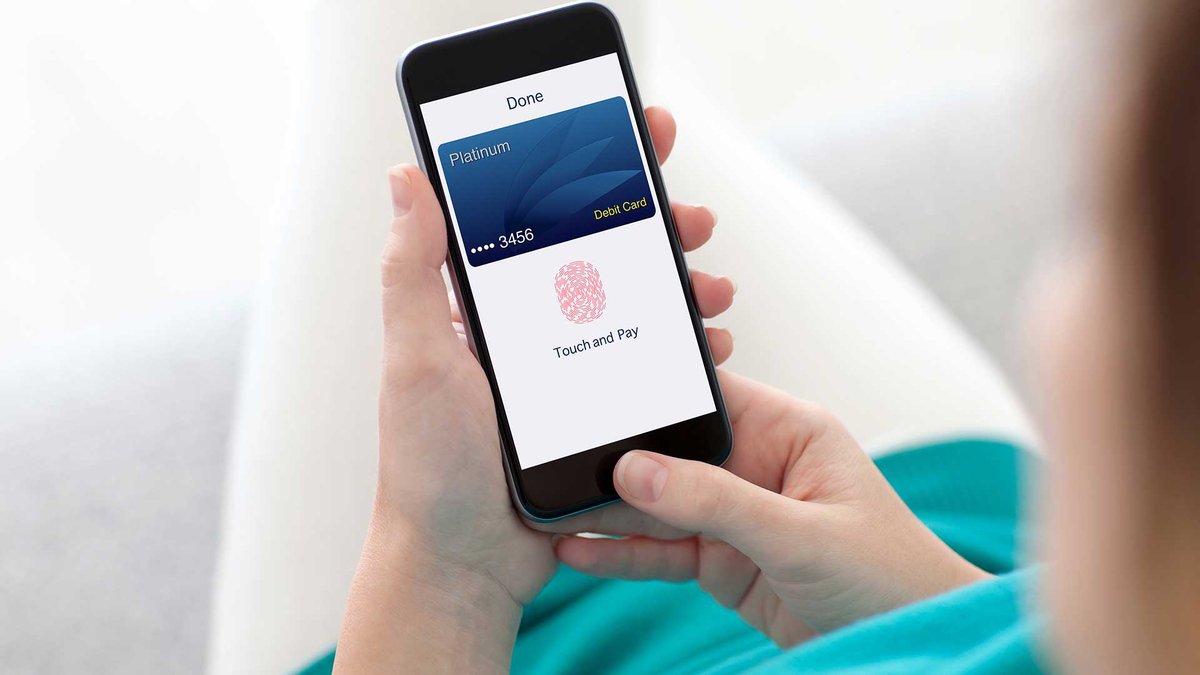
Our mobile phones are more than just communication tools; they're digital extensions of ourselves. They hold our photos, financial apps, personal messages, health data, and often, the keys to our entire online lives. This makes Mobile Security & Privacy not just a technical concern, but a fundamental aspect of your personal safety and digital well-being. Leaving your phone's defenses unattended is like leaving your front door unlocked in a bustling city.
This guide will equip you with the knowledge and actionable steps to fortify your Android device, transforming you from a passive user into an empowered guardian of your digital self. We'll cut through the jargon, focusing on the practical settings and habits that truly make a difference, especially for Android users.
At a Glance: Your Android Security & Privacy Essentials
- Your Phone, Your Fortress: Understand that your Android device holds immense personal value, making it a prime target for cyber threats.
- Android's Built-In Shield: Familiarize yourself with your device's native Security & Privacy settings, the control center for your defenses.
- Stay Updated, Stay Safe: Regularly check for and install system updates; they're crucial patches against new vulnerabilities.
- Permissions are Power: Scrutinize app permissions before and after installation, granting only what's necessary.
- Lock It Down: Implement strong screen locks (PINs, patterns, biometrics) and enable two-factor authentication (2FA) wherever possible.
- Alerts Are Your Allies: Pay attention to warnings from Google Play Protect and your Security & Privacy dashboard; they're early indicators of risk.
- Proactive Habits: Develop smart browsing, downloading, and Wi-Fi habits to minimize exposure to threats.
Why Your Phone is a Prime Target
Think about it: your Android device is a portable supercomputer, constantly connected, often to unsecured networks, and loaded with sensitive applications. This makes it an irresistible target for bad actors looking to:
- Steal your identity: Accessing banking apps, social media, or personal data.
- Hold your data hostage: Ransomware can encrypt your files, demanding payment for their release.
- Spy on your communications: Listening to calls, reading messages, tracking your location.
- Hijack your accounts: Using your phone to gain access to your email, cloud storage, or even cryptocurrency wallets.
- Commit financial fraud: Making unauthorized purchases or transferring funds.
The threats are diverse, from sophisticated malware and phishing attempts to less obvious risks like insecure public Wi-Fi or rogue apps. But here's the good news: Android provides robust tools, and with a bit of vigilance, you can significantly reduce your risk.
Android's Command Center: Understanding Your Security & Privacy Settings
Google has progressively refined Android's security and privacy dashboard, making it easier for you to see your status at a glance and take corrective action. This is your primary defense hub.
Locating Your Settings
The exact path can vary slightly based on your Android version, but the core functionality remains.
- For Android 13 and up: Navigate to Settings > Security & privacy. Here, you'll find a unified dashboard providing an overview of your security status, alerts, and recommendations.
- For Android 12 and lower: You'll typically find separate sections: Settings > Security and Settings > Privacy. It's worth exploring both.
Once inside, you'll see an immediate overview of your device's security and privacy health. If everything looks good, you'll likely see a comforting message like "Looks good." However, if there are potential risks, you'll see a clear warning, such as "Device is at risk," accompanied by a description of the issue and suggestions for resolution. This intuitive system is designed to be your first line of defense, guiding you to potential vulnerabilities before they become full-blown problems.
Core Pillars of Your Android Defense System
Let's break down the key areas you'll find within these settings, drawing directly from Google's framework and expanding on their importance.
1. App Security: Google Play Protect at Your Service
- What it does: Google Play Protect is Android's built-in malware scanner. It continuously checks apps on your device and those you're about to download from the Google Play Store for harmful behavior. It's like a vigilant watchdog, sniffing out potential threats.
- Why it matters: Even legitimate-looking apps can sometimes harbor malicious code or engage in risky practices. Play Protect offers a foundational layer of defense against these.
- Actionable steps:
- Ensure it's active: In your Security & privacy settings, tap on "App security" (or "Google Play Protect" in older versions). Make sure "Scan apps with Play Protect" is toggled on.
- Only download from trusted sources: While Play Protect scans, the safest bet is still to download apps exclusively from the Google Play Store. Sideloading apps from unknown sources dramatically increases your risk.
- Review app permissions: Even benign apps can become a privacy risk if they ask for excessive permissions. We'll dive deeper into this below.
2. Device Lock: Your First Physical Barrier
- What it does: This section manages how you lock your device screen and enable biometric unlocks like fingerprint or face recognition. It’s the gatekeeper to all the data on your phone.
- Why it matters: A strong device lock prevents unauthorized access if your phone is lost or stolen. Without it, anyone could pick up your device and potentially access your entire digital life.
- Actionable steps:
- Implement a strong screen lock: Ditch the simple swipe. Use a strong PIN (at least 6 digits, not easily guessable like your birthday), a complex pattern, or a robust password.
- Enable biometrics: Fingerprint unlock and face unlock offer convenience without sacrificing security. Ensure your biometrics are properly registered and recognized.
- Set auto-lock: Configure your device to lock automatically after a short period of inactivity (e.g., 30 seconds).
3. Accounts Security: Protecting Your Digital Identity
- What it does: This area often provides warnings and recommendations related to your Google Account itself, which is typically the central hub for your Android device, apps, and services. It flags suspicious activity or weak security settings within your Google ecosystem.
- Why it matters: Your Google Account often connects to your email, cloud storage, payment methods, and app purchases. Compromising it can have cascading effects across your digital presence.
- Actionable steps:
- Enable 2-Step Verification (2SV): This is non-negotiable. 2SV (also known as two-factor authentication or 2FA) adds a second layer of security, requiring a code from another device or method even if someone has your password.
- Review recent activity: Regularly check your Google Account activity for any unrecognized logins or actions.
- Use a strong, unique password: Make sure your Google Account password isn't reused anywhere else and is complex.
4. System Updates: Your Essential Security Patch
- What it does: This section shows the status of your Android operating system (OS) and security updates. It allows you to check for, download, and install the latest versions.
- Why it matters: Software vulnerabilities are constantly being discovered by security researchers and unfortunately, by malicious actors. OS and security updates often contain critical patches that fix these vulnerabilities, closing potential backdoors before they can be exploited. Running an outdated OS is like driving a car with known brake problems.
- Actionable steps:
- Check regularly: Make it a habit to tap "System updates" (or similar) and check for new updates. Don't defer them indefinitely.
- Install promptly: When an update is available, install it as soon as is practical. Many updates can be scheduled overnight.
- Understand your device's support cycle: Be aware that older Android devices may eventually stop receiving security updates, at which point upgrading might be the safest option.
5. Device Finders: Locating a Lost or Stolen Phone
- What it does: This typically links to or provides information on Google's "Find My Device" (sometimes called "Find Hub" in settings). This service allows you to remotely locate, lock, erase, or ring your lost Android device.
- Why it matters: Losing your phone is distressing, but the bigger risk is your data falling into the wrong hands. Find My Device provides a critical safety net.
- Actionable steps:
- Ensure it's enabled: In your security settings, check that "Find My Device" (or similar) is turned on.
- Test it out: Log into the Find My Device website (android.com/find) from a computer or another phone to ensure it works. Practice locking and ringing your device.
- Have a plan for loss: Know how you'd remotely wipe your device if recovery isn't possible, protecting your sensitive information.
6. Privacy: Managing Your Digital Footprint
- What it does: This section gives you granular control over what data your apps can access and how your device handles privacy-sensitive information. It's where you manage permissions for your camera, microphone, location, contacts, and more.
- Why it matters: Apps often request permissions they don't truly need to function. Granting excessive permissions can lead to data misuse, targeted advertising, or even surveillance. For instance, why would a simple calculator app need access to your contacts or location?
- Actionable steps:
- Review App Permissions: Go to "Privacy" > "Permission manager" (or similar) to see which apps have access to sensitive categories like Location, Camera, Microphone, Contacts, and Files & media. Revoke any unnecessary permissions. For a deeper dive, consider delving deeper into Android app permissions.
- Location Services: Toggle location access for apps to "Allow only while using the app" or "Ask every time" rather than "Always allow," unless absolutely necessary.
- Privacy Dashboard (Android 12+): This feature provides a timeline of when apps have accessed your microphone, camera, or location. Use it to spot suspicious activity.
- Microphone and Camera Indicators (Android 12+): Look for the small green dot in the top right corner of your screen; it indicates when your camera or microphone is in active use by an app.
7. More Security and Privacy Settings: The Advanced Toolkit
- What it does: This catch-all section includes additional features like "App pinning," which locks your screen to a single app (useful when handing your phone to someone), or settings for "Notifications on lock screen," which controls how much information is visible without unlocking your device.
- Why it matters: These settings offer additional layers of control for specific scenarios and preferences, enhancing your overall security posture.
- Actionable steps:
- App Pinning: Enable this feature. If you let a child play a game or a friend view a photo, you can pin the app, preventing them from accidentally (or intentionally) browsing other parts of your phone.
- Lock Screen Notifications: Decide how much information you're comfortable displaying on your lock screen. You can choose to hide sensitive content or even hide all notifications until unlocked. This prevents shoulder-surfers from seeing your private messages.
Navigating Alerts and Recommendations: When Your Phone Speaks Up
Your Security & Privacy dashboard isn't just a static display; it's a dynamic alert system. If it says "Device is at risk," don't panic – take action.
The warning will be accompanied by a clear description of the risk, such as:
- "No screen lock set up." (Solution: Set a strong PIN, pattern, or password.)
- "Outdated Android version." (Solution: Check for and install system updates.)
- "Harmful app found." (Solution: Review the app suggested by Google Play Protect and uninstall it.)
- "Review privacy permissions." (Solution: Go to the Permission Manager and revoke unnecessary access.)
Think of these alerts as your phone's way of saying, "Hey, I see a potential problem here, and here's what we can do about it." Address them promptly. Ignoring these warnings leaves known vulnerabilities open.
Beyond the Settings: Proactive Mobile Security Best Practices
While Android's built-in tools are powerful, your habits are equally, if not more, important. Here's how to build a robust security mindset.
1. Embrace Strong Passwords and Two-Factor Authentication (2FA) Everywhere
This cannot be stressed enough. A weak, reused password is an open invitation for hackers.
- Use a password manager: Tools like LastPass, Bitwarden, or 1Password generate, store, and auto-fill complex, unique passwords for all your online accounts. This is fundamental to good digital hygiene. best practices for using a password manager will help you get started.
- Enable 2FA on every service: Beyond your Google Account, enable 2FA on banking apps, social media, email, cloud storage, and any other critical service. Even if your password is stolen, the attacker can't get in without the second factor.
2. Be Vigilant with Apps: What You Install Matters
Every app is a potential gateway to your device. Be extremely cautious.
- Stick to the Google Play Store: It's the most vetted source for Android apps. Avoid downloading APK files from random websites.
- Read reviews, check developer reputation: Before installing, quickly skim reviews. Look for apps from reputable developers.
- Scrutinize permissions BEFORE installing: This is crucial. Pay attention to the permissions an app requests. If a flashlight app wants access to your contacts or microphone, something is wrong.
- Regularly audit installed apps: Periodically go through your app list and uninstall anything you no longer use or that seems suspicious.
3. Wi-Fi Wisdom: Navigating Public Networks Safely
Public Wi-Fi (cafes, airports) is convenient but often unsecured.
- Assume public Wi-Fi is unsafe: Malicious actors can set up fake Wi-Fi hotspots or snoop on traffic on legitimate but unprotected networks.
- Use a VPN: A Virtual Private Network (VPN) encrypts your internet traffic, creating a secure tunnel. This is essential for protecting your data on public Wi-Fi. It's worth understanding the full benefits of a VPN for comprehensive protection.
- Avoid sensitive transactions: Refrain from online banking, shopping, or accessing sensitive accounts when connected to public Wi-Fi without a VPN.
- Turn off Wi-Fi when not in use: This prevents your phone from automatically connecting to potentially malicious networks.
4. Sharpen Your Phishing & Social Engineering Radar
These attacks prey on human psychology, not technical vulnerabilities.
- Be skeptical of unsolicited messages: Whether it's an email, SMS (smishing), or social media message, if it seems too good to be true, asks for urgent action, or demands personal information, it's likely a scam. Learn to identify sophisticated phishing scams to protect yourself.
- Verify sender identity: Check email addresses carefully. Look for typos or slight variations in legitimate-looking URLs.
- Don't click suspicious links: If you receive a link, hover over it (on a computer) or long-press it (on mobile) to see the actual URL before clicking. If in doubt, go directly to the website by typing the address yourself.
- Never share passwords or 2FA codes: No legitimate organization will ever ask for your password or your 2FA code.
5. Data Backups: Your Ultimate Safety Net
Even with the best security, things can go wrong (phone loss, damage, ransomware).
- Regularly back up your data: Use Google Photos for photos/videos, Google Drive for files, and ensure your app data is backed up to Google One or similar cloud services.
- Test your backups: Periodically check that your backups are working and that you can restore data.
6. Smart Messaging Choices
Consider the privacy implications of the communication apps you use.
- End-to-end encryption: Opt for messaging apps that offer end-to-end encryption by default for your conversations. This ensures only the sender and intended recipient can read the messages. Research choosing secure messaging apps that prioritize user privacy.
7. Educate Yourself on Mode Mobile
Understanding the broader landscape of mobile device management and optimization can further enhance your overall experience and security posture. To explore comprehensive solutions and how a device can be tailored for better performance and potentially, enhanced security features, you might want to Learn more about Mode Mobile. This can give you insights into how different mobile platforms or device ecosystems approach security and user experience.
Common Mobile Security Misconceptions
Let's clear up some myths that can leave you vulnerable.
- "My phone is too boring to be targeted."
- Reality: Attackers often use automated bots that indiscriminately target all devices with vulnerabilities, not just those belonging to high-profile individuals. Your data, even if seemingly mundane, is valuable for identity theft, spam campaigns, or gaining access to other accounts.
- "Antivirus apps are enough."
- Reality: While antivirus apps add a layer of protection, they are not a silver bullet. They primarily protect against known malware. Your habits (strong passwords, smart clicking, permission management) are equally, if not more, important for a holistic defense against phishing, social engineering, and zero-day exploits. Android's built-in Play Protect is often sufficient for basic malware scanning.
- "Incognito mode makes me invisible."
- Reality: Incognito mode (or private browsing) only prevents your browser from saving your browsing history, cookies, and site data on your device. It doesn't hide your activity from your internet service provider (ISP), your employer/school network, or the websites you visit. For true anonymity, you need a VPN and other privacy tools.
Taking Control of Your Digital Shield
Mobile security and privacy aren't one-time tasks; they're ongoing processes. By understanding Android's built-in tools, leveraging proactive habits, and staying informed, you transform your smartphone from a potential vulnerability into a trusted digital companion.
Make it a habit to:
- Periodically review your Android Security & Privacy settings: Look for new alerts and recommendations.
- Install updates immediately: Don't delay those critical patches.
- Audit your app permissions: Are those apps still needing access to your location or camera?
- Practice digital skepticism: Think twice before clicking, downloading, or sharing.
Your phone is a powerful extension of you. Keep it safe, keep it private, and keep it secure.