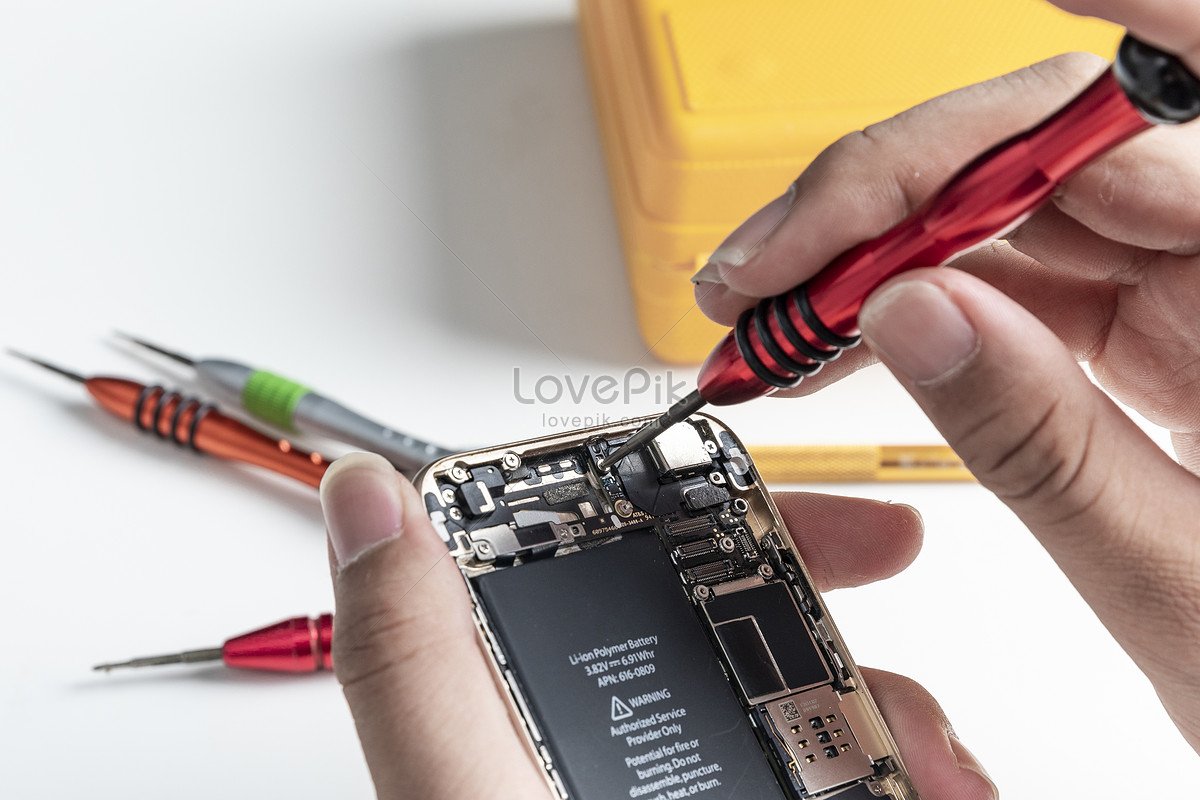
Is your smartphone acting more like a "dumb-phone" lately? From frustrating slowdowns to mysterious reboots, mobile device woes can turn essential tools into sources of endless irritation. But here’s the good news: many common issues that plague our pocket-sized companions aren't rocket science to fix. Understanding the basics of Mobile Device Troubleshooting & Maintenance empowers you to keep your device running smoothly, often without a costly trip to the repair shop.
This guide isn't just about fixing what's broken; it's about prevention, extending the life of your device, and reclaiming your digital peace of mind. Think of it as your essential owner's manual for a healthier, happier phone.
At a Glance: Key Takeaways for a Healthier Phone
- Declutter Regularly: Free up RAM and storage by deleting unused apps, files, and clearing caches to prevent slowdowns.
- Optimize Battery Life: Dim screens, disable unnecessary features (GPS, WiFi, Bluetooth), and identify draining apps.
- Guard Against Overheating: Keep your phone out of direct sun, allow it to rest, and remove cases if it gets too hot.
- Handle Water Damage Swiftly: Immediately power off, remove the battery (if possible), and get it to a repair shop (or use rice as a temporary measure) – never use a hair dryer.
- Practice Digital Hygiene: Regularly clear app caches, check for software updates, and ensure good connectivity practices.
- Protect Physically: Use cases, avoid harsh environments (dust, extreme temps), and handle with care.
- Know When to Seek Professional Help: Some issues are beyond DIY and require expert intervention.
Why Your Phone Needs TLC: Understanding the Basics of Device Health
Your smartphone is a complex piece of engineering, constantly working hard to keep you connected, productive, and entertained. Over time, factors like accumulated data, excessive app usage, environmental exposure, and even normal wear and tear can take a toll. Just like any other machine, a mobile device performs best with regular care and prompt attention to minor issues before they escalate.
Ignoring the signs of distress – a lagging interface, a quickly draining battery, or an overheating chassis – can lead to bigger problems, impacting your daily life and potentially shortening your phone's lifespan. By understanding common symptoms and their fixes, you're not just troubleshooting; you're investing in the longevity and reliability of your primary digital companion.
The Common Culprits: Diagnosing Everyday Mobile Phone Problems
Many of the frustrations you experience with your phone have straightforward causes and solutions. Let's break down the most frequent issues and how to tackle them.
Performance Hiccups
Slow Phone
A sluggish phone is often a sign of an overburdened system.
Why it happens: Your phone's RAM (Random Access Memory) gets full from too many open or unused apps, and your storage clogs up with excessive files.
The Fix:
- Digital Declutter: Regularly close apps you're not using, delete unnecessary files, and clear app caches (which store temporary data that can accumulate).
- App Audit: If the slowdown started recently, consider uninstalling any newly installed apps that might be problematic.
- Last Resort: Factory Reset: If all else fails and you're still experiencing significant slowness, backing up all your important data (to cloud services like Google Drive or Dropbox, or your computer) and performing a factory reset can give your phone a fresh start.
App Crashes or Freezes
When an app suddenly closes or becomes unresponsive.
Why it happens: This could be due to a bug within the app itself, or an incompatibility with your phone's operating system.
The Fix:
- Restart Your Phone: A simple reboot can often resolve temporary software glitches.
- Clear App Cache: Go to your phone's App Manager (or Apps settings), find the problematic app, force stop it, and then clear its cache.
- Reinstall the App: If clearing the cache doesn't work, uninstalling and then reinstalling the app can fix deeper corruption issues.
Phone Freezes
The entire device becomes unresponsive. This is particularly common in older phones or those with critically low storage.
Why it happens: The operating system becomes overwhelmed or encounters a critical error, leading to a complete lock-up.
The Fix (Force Restart): This method safely reboots your phone without risking further damage.
- Apple (iOS 8+): Quickly press and release the Volume Up button, then quickly press and release the Volume Down button, then press and hold the Power (Side) key for about 15 seconds until the Apple logo appears.
- Apple (iOS 7-): Press and hold the Power key and the Volume Down key simultaneously for about 10 seconds until the Apple logo appears.
- Samsung: Press and hold the Power key and the Volume Down key simultaneously for about 15 seconds until the Samsung logo appears.
- Sony: Press and hold the Power key and the Volume Up key simultaneously for about 10 seconds. Then, once it vibrates, press the Power key again to turn it on.
- Nokia/HMD: Press and hold the Power key and the Volume Up key simultaneously for about 15 seconds until the Android logo appears.
Power & Heat Issues
Bad Battery Life
Your phone dies too quickly, even with moderate use.
Why it happens: Many factors contribute, including screen brightness, background app activity, constant GPS/WiFi/Bluetooth usage, and an aging battery.
The Fix:
- Dim Your Screen: Lowering screen brightness is one of the most effective ways to save battery.
- Toggle Radios Off: Turn off GPS, WiFi, and Bluetooth when you're not actively using them.
- Enable Battery Saving Mode: Most phones have a mode that restricts background activities and optimizes settings for extended battery life.
- Identify Draining Apps: Check your phone's Battery Usage settings (usually under "Battery" in Settings) to see which apps are consuming the most power. You can then restrict or uninstall these culprits.
Overheating Phone
Your phone feels uncomfortably hot to the touch.
Why it happens: Often linked to intensive battery usage, a faulty charger, or environmental factors like direct sunlight.
The Fix:
- Apply Battery Life Solutions: Addressing excessive battery drain often helps with overheating.
- Cool Environment: Avoid carrying your phone in direct sunlight or leaving it in a hot car.
- Rest and Cool Down: If your phone feels hot, stop using it, close all apps, and let it rest in a cool place until it returns to a normal temperature.
- Remove Case: Sometimes, a phone case can trap heat. Remove it temporarily to aid dissipation.
Storage & Download Woes
Full Storage Space
You can't save new photos, download apps, or update software.
Why it happens: An abundance of photos, videos, downloaded files, and unnecessary apps consumes all available space, leading to performance issues.
The Fix:
- Delete & Clean: Regularly delete unused files, old call logs, text messages, and clear app caches.
- Cloud Storage: Transfer photos and videos to online cloud services (Google Photos, iCloud, Dropbox) or your computer.
- MicroSD Card (if applicable): If your phone supports it, use a microSD card to offload media and files.
Apps Not Downloading
Apps get stuck or fail to initiate downloads from your app store.
Why it happens: Usually, a corrupt cache within the app store or its associated services is the culprit.
The Fix:
- Clear Cache & Data: For Android, go to Settings > Apps > Google Play Store > Clear Cache and then Clear Data. Do the same for "Google Play Services." For iOS, restarting your device often helps.
- Restart Phone: After clearing caches, restart your device and try the download again.
MicroSD Card Does Not Work
Your phone doesn't recognize the inserted microSD card.
Why it happens: The card itself might have errors or be corrupted, preventing your phone from reading it.
The Fix:
- Format the Card: Connect your microSD card to a PC using a card reader. Format the card at least twice. This will erase all data, so back up anything important first.
- Re-insert: Restart your phone, then re-insert the freshly formatted SD card.
Physical & Environmental Mishaps
Wet Cell Phone
The dreaded accidental dip in water, or exposure to rain.
Why it happens: Liquids can short-circuit internal components, leading to irreparable damage if not handled correctly.
The Fix (Critical Steps):
- DO NOT Turn On or Charge: Powering on a wet device can cause immediate short-circuiting.
- Remove Battery (If Removable): This cuts power and prevents further damage.
- Absorb Moisture: Place the phone in a bowl of uncooked rice for at least 24-48 hours. The rice can help draw out some moisture.
- Professional Help: For serious water exposure, take it to a qualified service workshop as soon as possible. They have specialized tools to clean and dry internal components.
- DO NOT use a hair dryer: The heat can push moisture further inside and damage sensitive components.
Damaged Charging Port
Your phone won't charge or only charges intermittently.
Why it happens: The charging port can accumulate dirt, dust, or lint, or suffer physical deterioration from misuse.
The Fix:
- Clean the Port: With the phone powered off, carefully clean the charging port with a new, dry toothbrush or a cotton swab. Be gentle to avoid damaging pins.
- Professional Repair: If cleaning doesn't resolve the issue, the port itself might be damaged, requiring a visit to a repair shop.
Platform-Specific Puzzles: Android & iOS Troubleshooting
While many issues are universal, both Android and iOS have their own unique quirks and solutions.
Android's Unique Challenges
Google Play Store Does Not Download Apps
You see errors or indefinite loading when trying to download apps.
The Fix:
- Go to Settings > Apps > Google Play Store. Tap "Clear Cache." Then restart your phone and try again.
- If that doesn't work, open the Google Play Store app itself, go to its Settings, and select "Clear local search history."
Google Play Store Crashes
The Play Store app closes unexpectedly.
The Fix:
- This is often due to a corrupt cache. Go to Settings > Apps > Google Play Store, then tap "Clear Cache" and "Clear Data." Restart your phone.
- If the issue persists, repeat these steps for "Google Play Services" and "Google Services Framework" (you may need to show system apps to find the latter).
Connectivity Issues (Bluetooth/WiFi)
Your phone struggles to connect to or maintain a stable connection with WiFi or Bluetooth devices.
The Fix:
- Toggle Airplane Mode: Enable Airplane Mode for about one minute, then disable it. This often resets the network radios.
- Specific Connection Toggle: Alternatively, simply turn off and then turn on the specific connection (WiFi or Bluetooth) from your quick settings or main settings menu.
Synchronization Failures
Your accounts (like Google or Dropbox) aren't syncing data with their respective apps.
The Fix:
- Check Internet Connection: Ensure you have a stable WiFi or mobile data connection.
- Verify External Services: Confirm that the external services (Google, Dropbox, etc.) are working correctly via a web browser.
- Password Check: Double-check that your account password hasn't changed.
- Re-add Account: If issues persist, try removing the problematic account from your phone's settings and then re-adding it.
Unsent Messages
You get "Message not sent" alerts for SMS or MMS.
The Fix:
- Network Check: Ensure your WiFi or mobile network is active and stable.
- Resend: Click on the unsent message to try resending it.
- Restart or Alternate App: If the problem continues, restart your phone. You could also try sending the message via another messaging app if available.
iPhone's Quirks
Control Center Button Does Not Respond
A specific button or toggle within the Control Center (swipe down from top-right) is frozen or unresponsive.
The Fix:
- Go to Settings > Control Center > Customize Controls.
- In the "Include" section, delete the unresponsive app/control.
- Restart your device.
- Return to Settings > Control Center > Customize Controls and re-add the app/control.
iPhone Overheats
Your iPhone becomes excessively hot, especially during use or charging.
The Fix:
- Rest the Phone: If an app is causing it, close the app and allow the phone to cool down.
- Disable Location Services: Go to Settings > Privacy > Location Services and temporarily disable it if you suspect a location-aware app is draining battery and causing heat.
- Unplug from Charger: If charging, unplug it until it cools down.
- Remove Case: Take off your phone case to improve heat dissipation.
Issues to Connect to WiFi
Your iPhone loses its WiFi connection or can't connect stably.
The Fix:
- Proximity & Network: Ensure you're close enough to the router and selecting the correct network.
- Restart Devices: Restart both your iPhone and your WiFi router.
- Reset Network Settings: Go to Settings > General > Transfer or Reset iPhone > Reset > Reset Network Settings. This will reset Wi-Fi passwords, VPN, and APN settings, so have them ready.
- Factory Reset (Last Resort): As a final option, after backing up all your data, a factory reset might be necessary.
The Screen Is Not Bright Enough
The screen appears dark even when brightness is set to maximum.
The Fix:
- Sometimes, an accessibility setting can interfere. Go to Settings > Accessibility > Display & Text Size (or Screen Adaptations) > Reduce White Point. Adjust the intensity or turn it off to see if it resolves the issue.
Unable To Connect To The App Store
Problems accessing the App Store, preventing downloads or updates.
The Fix:
- Go to Settings > General > Date & Time. Disable "Set Automatically."
- Manually set the date and time a few minutes into the future.
- Open the App Store for about 5 seconds.
- Return to Date & Time settings and re-enable "Set Automatically."
- Close and re-open the App Store.
Beyond the Fix: Proactive Mobile Phone Maintenance for Longevity
Troubleshooting is great for reactive fixes, but proactive maintenance is key to extending your phone's lifespan and maintaining its value.
Environmental Shielding
Your phone's worst enemies are often found in its surroundings.
- Avoid Extremes: Protect your device from excessive sun, rain, and extreme temperatures. LCD screens are particularly sensitive.
- Humidity Management: In very humid areas, even idle phones can suffer moisture damage. If your phone gets wet, wipe it dry immediately. Do NOT turn it on or charge it. If the battery is removable, take it out. Otherwise, visit a repair shop ASAP.
- First Aid for Water Contact: This is critical.
- Turn off power immediately. If possible, remove the battery.
- Send for repair ASAP.
- Do NOT use a hair dryer; this can push water further into the circuits and cause more harm.
- Instead, place the phone in a bag of uncooked rice for a day. While not a guaranteed fix, it can help absorb surface moisture.
Smart Usage Habits
How you use and handle your phone directly impacts its health.
- Avoid Unauthorized Parts & Modifications: Resist the urge to install non-original or modified parts. This can lead to damage and compromise call quality.
- Keep it Dry: Liquids are corrosive to circuits. Keep your phone away from drinks, rain, and humid environments like bathrooms.
- Avoid Dust & Dirt: Dusty or dirty places can undermine the tiny circuits inside your phone.
- Prevent Overheating: High temperatures damage batteries, melt plastic components, and can cause internal condensation.
- Hands Off Internal Components: Never attempt to open your phone yourself. This can cause severe damage and void warranties.
- Gentle Handling: Do not throw, knock, or shake your phone. Internal circuits are delicate, and the screen can crack easily.
- Clean Regularly, Gently: Use a soft, slightly damp cloth to clean your phone. Avoid strong chemicals, which can damage finishes and components.
- Seek Qualified Help: If your phone malfunctions beyond simple troubleshooting, take it to a qualified maintenance facility.
- Use a Mobile Phone Holster or Case: A good case or holster can significantly reduce wear and tear and provide crucial drop protection.
- Mind Your Carrying Habits: Avoid placing your phone in risky spots like loose breast pockets (easy to fall out) or back pockets (can bend or break when sitting).
- Steer Clear of Strong Magnets: Strong magnetic fields can interfere with your phone's compass and potentially block speaker sound.
Battery & Charging Best Practices
Proper battery care is crucial for device longevity.
- Addressing Automatic Shut-off: If your phone automatically shuts off, consider these causes:
- High Power Source/Blown Fuse: This requires a repair shop visit.
- Aging Battery: Older batteries lose capacity. A repair shop can replace it.
- Dirty Battery Contacts (Oxidation): Carefully clean oxidized battery terminals with a glue stick or soft eraser.
- Loose Battery: For phones with removable batteries, if it's loose, you can place a small piece of paper between the battery and the phone (avoiding the terminals) to stabilize it.
Regular Digital Hygiene
Think of it as brushing your phone's teeth.
- Perform Periodical Maintenance: Ideally, conduct a quick digital clean-up and check-in once a week. This includes clearing caches, deleting old files, and reviewing app permissions. It's a simple step that can prevent future headaches and ensure optimal performance. It's part of a holistic approach to device health, ensuring you can explore mode mobile with confidence, knowing your device is functioning at its best.
Loss Prevention: A Critical Step
Losing your phone is more than an inconvenience; it's a security risk.
- Act Fast: If your phone is lost or stolen, immediately contact the police to report it.
- Lock Your Device: Call your mobile provider to remotely lock the phone and suspend service, preventing unauthorized use and protecting your data.
When to Call in the Pros: Knowing Your Limits
While this guide covers a lot, some problems are best left to the experts. If you encounter issues like:
- Persistent hardware failures (e.g., camera not working, constant reboots despite software fixes).
- Physical damage beyond simple screen cracks (e.g., motherboard issues, severe water damage).
- Complex internal errors that factory resets don't resolve.
- Battery swelling or other signs of serious battery degradation.
- A damaged charging port that cleaning doesn't fix.
Don't hesitate to take your phone to a qualified and reputable repair shop. Attempting complex repairs yourself can void warranties and cause further, more costly damage.
Your Phone, Your Command: Empowering Your Device Journey
Your smartphone is an extension of you, connecting you to the world and storing precious memories. By embracing the principles of effective mobile device troubleshooting and maintenance, you're not just fixing problems; you're taking control of your digital life. You’re ensuring your device remains a reliable, high-performing tool, ready for whatever life throws at it. A little knowledge and consistent care go a long way in making sure your phone stays healthy, responsive, and always ready for your next adventure.