Getting a new mobile device is exciting. It's a portal to information, connection, and entertainment. But let's be honest: beneath that sleek exterior lies a labyrinth of Mobile Device Modes & Settings that can feel daunting. You swipe, tap, and maybe even occasionally dive into the "Settings" app, but do you truly understand the power and control at your fingertips?
Imagine your smartphone not just as a tool, but as a highly configurable assistant. Every mode and setting you adjust helps tailor its behavior to your precise needs, enhancing everything from privacy and battery life to connectivity and overall performance. This guide isn't just about showing you where the buttons are; it's about empowering you to master your device, making it work for you, not just with you.
At a Glance: What You'll Master
- Seamless Connectivity: Effortlessly manage Wi-Fi, mobile data, and Bluetooth for uninterrupted digital life.
- Extended Battery Life: Pinpoint power-hungry apps and leverage clever settings to keep your device running longer.
- Enhanced Privacy & Security: Control what apps access, protect your data, and secure your device from unauthorized use.
- Personalized Experience: Customize your display, sounds, and notifications to match your preferences and focus.
- Optimized Performance: Keep your device running smoothly by understanding storage, memory, and system updates.
- Accessibility for All: Discover features that make your phone more usable for diverse needs.
The Foundation: Connectivity & Communication
Your mobile device is fundamentally about staying connected. Understanding its network and connectivity settings is paramount, whether you're trying to save data, ensure privacy, or simply make a call when your cellular signal is weak.
Network & Internet: Your Digital Lifelines
This section is where you manage how your phone communicates with the outside world, from the internet to private networks.
Wi-Fi: The Power of Local Networks
Wi-Fi is often your fastest and most cost-effective way to get online. When available, connecting to a Wi-Fi network saves your mobile data and typically offers much higher speeds, especially for streaming or large downloads.
- Connecting & Managing: You can easily scan for available networks, connect to secured ones with a password, and even "forget" networks you no longer use to keep your list clean. Many devices offer "auto-connect" options, so your phone remembers and prioritizes known Wi-Fi networks.
- Security First: Always prefer secured networks (indicated by a padlock icon) and be cautious on public Wi-Fi, which can be less secure. For sensitive activities, consider using a VPN.
- Actionable Tip: Wi-Fi Calling: If your cellular signal is unreliable at home or work, enable Wi-Fi calling. This feature allows your phone to make and receive calls and texts over a Wi-Fi connection, ensuring you stay in touch even in cellular dead zones. Check your carrier's support page for specific setup instructions.
Mobile Data: Internet On-the-Go
When Wi-Fi isn't an option, mobile data steps in, using your cellular network to keep you connected. Managing it effectively is key to avoiding unexpected charges and ensuring you don't run out of data mid-month.
- Usage Monitoring: Dive into your settings to see which apps are consuming the most data. This insight helps you decide if certain apps should be restricted from using mobile data or only allowed to sync over Wi-Fi.
- Data Limits & Warnings: Set a data warning or a hard data limit to prevent overage charges. Your phone can notify you as you approach your limit or even automatically cut off data usage once you hit it.
- Roaming: Be mindful of data roaming when traveling internationally, as costs can skyrocket. Consider local SIM cards or international data plans.
Advanced Network Settings: VPNs & Private DNS
Beyond basic connectivity, your network settings offer tools for enhanced privacy and security.
- VPN (Virtual Private Network): A VPN encrypts your internet traffic and routes it through a secure server, masking your IP address and protecting your online activities from prying eyes, especially on public Wi-Fi. It's a crucial tool for digital privacy.
- Private DNS: This feature (often found under "Advanced" or "More connection settings") can enhance both security and performance by encrypting your DNS queries, preventing them from being intercepted or tampered with by your internet provider.
Connected Devices: Expanding Your Phone's Reach
Your phone doesn't have to work in isolation. These settings allow it to interact seamlessly with a vast ecosystem of accessories and other smart devices.
Bluetooth: Wireless Freedom
Bluetooth is the workhorse for short-range wireless connections, enabling hands-free operation and untethered audio.
- Pairing Devices: From headphones and smartwatches to car audio systems and keyboards, Bluetooth allows your phone to connect to peripherals for a richer experience. The pairing process is usually straightforward: make your accessory discoverable, scan from your phone, and connect.
- Use Cases: Enjoy music through wireless speakers, take calls using a headset while driving, or even connect a gaming controller for mobile gaming.
Cast: Your Screen, Bigger
Want to share photos, videos, or even your entire phone screen with a group? Casting lets you do just that.
- Seamless Streaming: With a compatible smart TV or a casting device (like a Chromecast), you can stream your phone's screen or media directly to a larger display. It's perfect for movie nights or presentations, bypassing the need for cables.
NFC (Near Field Communication): Tap and Go
NFC offers incredibly quick, short-range communication, making everyday tasks faster and more convenient.
- Contactless Payments: The most common use is mobile payments. Tap your phone at compatible terminals to make secure transactions, replacing your physical wallet.
- Quick Pairing & Sharing: NFC can also be used for instant Bluetooth pairing with compatible devices or for quickly sharing content between phones by tapping them together.
USB: The Wired Connection
While wireless is convenient, USB still plays a critical role for reliable charging, data transfer, and advanced functions.
- File Transfers: Connecting your phone to a computer via USB allows you to easily transfer photos, videos, documents, or other files, crucial for managing your digital life or creating backups.
- Charging Options: USB also determines how your phone charges. Some ports support faster charging, and settings might allow you to optimize for speed or battery health.
- Developer Options: For advanced users, connecting via USB can unlock developer options, enabling debugging, custom software installation, and more intricate device control. These are vital for those who want to delve deeper into customizing their Android experience, often involving detailed steps like those found when you learn more about Mode Mobile and its capabilities.
Mastering Your Apps & Notifications
Apps are the heart of your smartphone, but they can quickly become overwhelming if not managed correctly. This section ensures your apps work for you, without constant distractions or privacy concerns.
Apps & Notifications: Your Digital Ecosystem
Taking control of how your apps behave and communicate with you is essential for a productive and private mobile experience.
App Management: The Digital Housekeeping
Your phone's app management settings are the control center for everything related to your installed applications.
- Install, Uninstall, Update: Regularly review your installed apps. Uninstall those you no longer use to free up storage and improve performance. Always keep your apps updated to ensure you have the latest features, bug fixes, and crucial security patches.
- Storage & Cache: Within each app's settings, you can often clear its cache (temporary data that can accumulate and slow things down) or clear all app data (effectively resetting the app to its fresh-install state).
Notifications: Information Without Overload
Notifications are a double-edged sword: vital for staying informed, but a constant source of distraction if unchecked.
- Customization is Key: Most apps allow you to fine-tune their notification behavior. You can often choose between silent notifications, banners, sounds, vibration, or even turn them off entirely for less critical apps. Prioritize what truly needs your immediate attention.
- Notification Channels: Modern Android versions offer "notification channels," allowing you to control specific types of notifications within an app (e.g., separating promotion alerts from important account updates).
- Actionable Tip: Block Pop-ups: Web browsers on your phone can be plagued by pop-ups and intrusive ads. Most modern browsers have settings to block pop-ups. Enable this feature to improve your browsing experience, speed up page loading, and protect yourself from potentially harmful or annoying content. This often involves going into your browser's specific settings, not just the general app settings.
Permissions: Guarding Your Privacy
App permissions are crucial for privacy and security. They dictate what parts of your phone an app can access.
- Granular Control: Instead of an all-or-nothing approach, you can grant or deny specific permissions (like access to your camera, microphone, contacts, or location) to individual apps. Regularly review these permissions, especially for apps you rarely use or those that seem to request unnecessary access.
- "Only while using the app": For sensitive permissions like location, choose the "Allow only while using the app" option whenever possible, preventing background tracking.
Powering Your Device: Battery, Display, & Sound
These settings directly impact your daily user experience, from how long your phone lasts to how comfortably you interact with its screen and audio.
Battery Settings: Maximizing Your Power Reserve
Your battery is the lifeblood of your mobile device. Understanding and managing these settings can significantly extend your phone's uptime.
Battery Usage: Identifying Power Hogs
Knowledge is power, especially when it comes to battery life.
- App Consumption: Your battery usage stats show you exactly which apps and system processes are consuming the most power. This information is invaluable for identifying "rogue" apps that might be draining your battery in the background. Armed with this, you can limit their background activity, restrict permissions, or seek alternatives.
Battery Saver: Stretching Every Last Drop
When your battery runs low, Battery Saver mode is your best friend.
- Emergency Extension: This mode extends battery life by limiting background app activity, reducing visual effects, restricting certain features (like always-on display), and often reducing overall performance. It's an excellent feature for emergencies or when you know you'll be away from a charger for an extended period. Many phones allow you to schedule it to turn on automatically at a certain percentage.
Optimization: Intelligent Power Management
Modern Android devices are smart. They use AI and machine learning to optimize battery usage behind the scenes.
- Adaptive Battery: This feature learns your usage patterns over time, identifying apps you use frequently and prioritizing their battery usage, while restricting power for those you rarely open. This balances performance with battery longevity without constant manual intervention.
- Actionable Tip: Clear Your Cache: Regularly clearing your device's overall system cache (different from individual app caches) can significantly improve device performance and, by reducing unnecessary processing, save battery life. This is often done via your phone's recovery mode (check your specific device manufacturer's instructions), or by routinely clearing individual app caches.
Display Settings: Your Window to the Digital World
The display is how you interact with your phone, making its settings crucial for both comfort and battery efficiency.
Brightness: Clarity & Conservation
Screen brightness is a major factor in both readability and battery drain.
- Manual vs. Auto-Brightness: While manual control gives you precise adjustment, auto-brightness (or "Adaptive brightness") intelligently adjusts based on ambient light, saving battery in darker environments and ensuring visibility in bright ones. Most users find auto-brightness to be a good balance.
- Eye Comfort Modes: Many phones offer "Night Light" or "Blue Light Filter" modes, which reduce blue light emissions, making the screen warmer and easier on your eyes, especially before bedtime.
Screen Timeout: Mind the Gap
The screen timeout setting dictates how long your screen stays on after you've stopped interacting with it.
- Battery Impact: A shorter screen timeout (e.g., 15-30 seconds) is generally better for battery life, as the screen is one of the biggest power consumers. However, too short a timeout can be annoying if you're frequently reading or referring to content without touching the screen. Find a balance that suits your usage.
Wallpaper: Personalizing Your Canvas
While largely aesthetic, your wallpaper is a fundamental part of your phone's look and feel.
- Home & Lock Screens: Customize both your home screen (where your apps and widgets reside) and your lock screen (the first thing you see) with photos, dynamic wallpapers, or artistic designs to make your device uniquely yours.
Sound Settings: Your Auditory Experience
From notification chimes to media playback, sound settings control how your phone communicates through audio.
Volume: Precision Control
Your phone isn't a one-size-fits-all sound machine. It offers separate volume controls for different audio types.
- Separate Sliders: Adjust levels independently for your ringtone and notifications, media playback (music, videos), and alarms. This allows you to crank up your workout playlist without having your incoming call blast everyone's ears.
Do Not Disturb: Peace and Quiet
For focused work, undisturbed sleep, or important meetings, Do Not Disturb (DND) mode is invaluable.
- Silencing Notifications: DND silences all or most notifications, calls, and alerts. You can often customize it to allow exceptions (e.g., calls from favorite contacts or repeat callers) or schedule it to activate automatically during specific times or events (like your bedtime or work hours).
Ringtone: Your Personal Soundtrack
Your ringtone isn't just a sound; it's an identifier.
- Custom Sounds: Choose from a wide selection of built-in ringtones or set custom audio files as your unique ringtone for calls and notifications. This personalization helps you distinguish your phone from others and adds a personal touch.
Device Health: Storage, Privacy, & System
These are the settings that ensure your device performs optimally, keeps your personal information secure, and stays up-to-date.
Storage Management: Keeping Your Device Lean
Running out of storage is a common headache that can severely impact performance. Proactive management is key.
Internal Storage: Knowing Your Limits
Your phone's internal storage holds everything from your operating system and apps to photos and videos.
- Space Overview: Regularly check your available storage space. Your phone's settings provide a breakdown of what's consuming space (apps, photos, videos, system files, etc.), helping you identify areas for cleanup.
- Performance Impact: A full storage can lead to sluggish performance, app crashes, and prevent you from installing new updates or taking new photos.
Memory Usage: RAM vs. Storage
While often confused, RAM (Random Access Memory) and storage serve different purposes. Memory usage refers to RAM.
- Identifying Hogs: Your memory usage settings show which apps are actively using the most RAM. High RAM usage can slow down your device, especially when multitasking. This helps identify resource-heavy applications that might be worth force-stopping or uninstalling if they're not critical.
File Management: Decluttering Your Digital Life
Manual file management complements automatic cleanup tools.
- Organize & Delete: Use a file manager app (often built-in) to browse your phone's internal storage, organize files into folders, and delete unnecessary downloads, old documents, or duplicate photos to free up space.
Actionable Tip: Backup Your Android Phone Regularly
Data loss can be devastating. Whether your phone is lost, stolen, or damaged, having a recent backup ensures your precious memories and important information are safe. Configure automatic backups to Google Drive (for Android) or another cloud service for seamless, worry-free data protection. Make it a habit to confirm your backups are indeed happening.
Privacy and Security Settings: Your Digital Fortress
In today's interconnected world, protecting your personal information and your device is more critical than ever.
Permissions: Reclaiming Your Data
We've touched on this, but it bears repeating: permissions are your first line of defense.
- Regular Review: Periodically review app permissions. If an app requests access that seems unrelated to its core function (e.g., a simple game wanting access to your contacts), re-evaluate its necessity or find an alternative.
Location: Where You Go, What Apps Know
Location data is incredibly useful but also highly sensitive.
- Granular Control: Control which apps can access your location and under what circumstances (always, only while using the app, or never). Be particularly wary of apps requesting "always" access if it's not absolutely essential for their function (like a navigation app). Background location access can also significantly impact battery life.
Screen Lock: Your First Line of Defense
A secure screen lock is the most basic, yet most important, security measure.
- PIN, Pattern, Fingerprint, Face Unlock: Choose a strong screen lock method. A complex PIN (more than 4 digits), an intricate pattern, or biometric security (fingerprint, face unlock) are far more effective than a simple swipe. Configure your device to lock instantly when the screen turns off.
Find My Device: Recovering the Unrecoverable
Losing your phone is stressful, but "Find My Device" offers a lifeline.
- Location Tracking & Remote Wipe: Ensure "Find My Device" is enabled and correctly configured. This service allows you to remotely locate your lost or stolen phone, make it ring (even if on silent), lock it, display a message on its screen, or, as a last resort, remotely erase all its data to protect your privacy.
Account Management: Your Digital Identity
Your mobile device is often linked to several online accounts. Managing these correctly ensures data syncs and user privacy.
Account Sync: Keeping Everything Current
Many services, especially Google services, offer automatic account syncing.
- Data Synchronization: This keeps your emails, contacts, calendar events, photos, and other data synchronized across your device and the cloud. You can control which specific data types sync for each account, which can save data and battery if you don't need everything synced constantly.
User Management: Sharing Your Device Safely
If you share your tablet or even temporarily lend your phone, user management is vital.
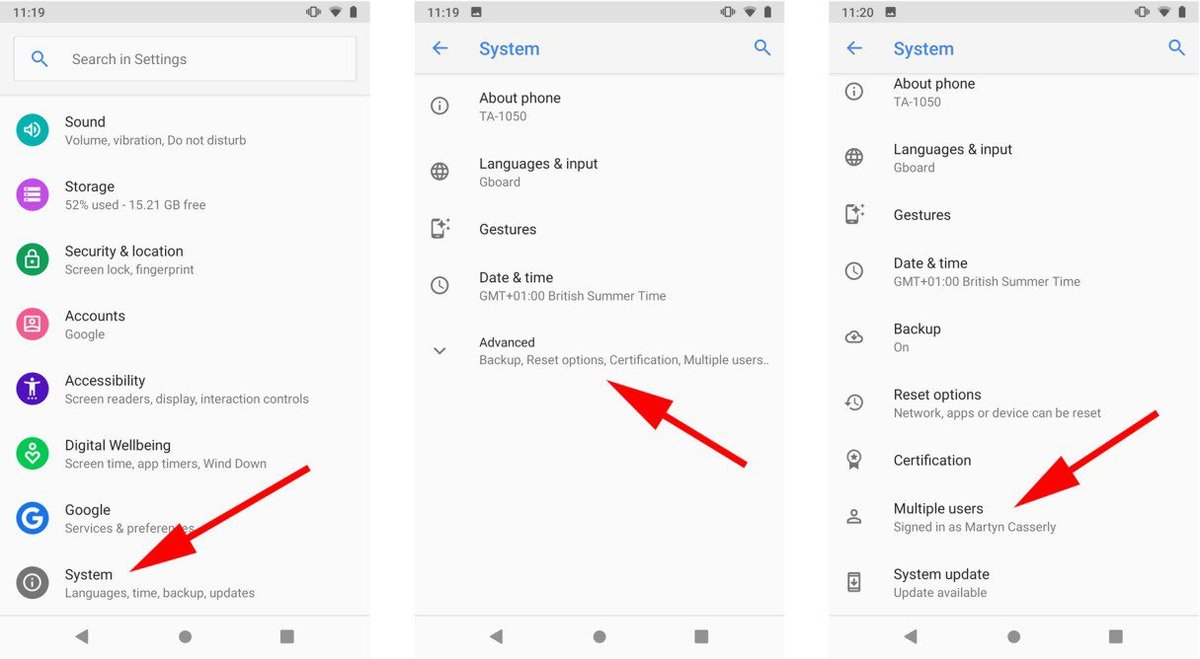
- Multiple Users & Guest Mode: Android allows you to set up multiple user profiles, each with its own apps, data, and settings. "Guest mode" is even better for quick borrows, creating a temporary, isolated profile with limited access, ensuring your personal data remains private.
- Actionable Tip: Set up Guest Mode: Before lending your phone to a friend or family member, activate Guest Mode. This prevents them from accessing your personal data, apps, messages, and photos, offering a quick and easy way to maintain your privacy while sharing your device.
Accessibility Features: A Device for Everyone
Mobile devices are designed to be universally usable, and accessibility settings ensure this for everyone.
TalkBack: A Voice for the Visually Impaired
For users with visual impairments, TalkBack provides auditory feedback.
- Screen Reader: TalkBack is a screen reader that describes what's on your screen, reads out text, and provides spoken feedback for interactions, allowing users to navigate their device without needing to see the display.
Font Size & Display Adjustments: Seeing Clearly
Readability is paramount for comfortable device use.
- Adjusting Text: Easily adjust the font size to make text more readable. For those with low vision, larger fonts can make a significant difference.
- Display Size: Beyond text, you can also adjust the overall display size, making elements on the screen larger or smaller.
Color Correction: Tailoring the Visual Experience
Color blindness affects a significant portion of the population.
- Enhanced Readability: Color correction modes adjust the display's colors to help users with various forms of color blindness differentiate between elements and improve overall screen readability.
System Settings: The Core Controls
These settings manage the fundamental operations of your mobile device, impacting everything from language to security updates.
Language & Input: Speaking Your Language
Your device should communicate in a way that's comfortable for you.
- Display Language: Easily change the device's display language to your preferred tongue, affecting menus, app interfaces, and system messages.
Date & Time: Always on Schedule
Accurate date and time are essential for scheduling, notifications, and even security certificates.
- Automatic vs. Manual: Most users keep date and time on "automatic," syncing with network providers. However, you can manually set time zones, 24-hour formats, or specific dates if needed.
System Updates: Staying Secure & Modern
Regular system updates are non-negotiable for device health and security.
- New Features & Security Patches: System updates deliver new features, performance improvements, crucial bug fixes, and, most importantly, critical security patches that protect your device from newly discovered vulnerabilities. Always install updates when available.
- Actionable Tip: Update Your Android Phone Regularly: Don't put off those system update notifications. Regularly updating your Android phone is crucial to get the latest features, improve overall performance, and maintain robust security against evolving threats. It's a simple, yet powerful, step to keep your device safe and efficient.
Backup: Your Digital Safety Net
Beyond individual app backups, your system settings also manage comprehensive device backups.
- Automatic Google Drive Backup: Android devices typically offer automatic backup to Google Drive, saving app data, call history, device settings, contacts, and SMS messages. Ensure this is enabled and regularly check its status to guarantee your data is protected.
Beyond the Basics: Taking Control of Your Mobile Experience
You've now walked through the most critical Mobile Device Modes & Settings. This isn't just a list of features; it's a toolkit for empowerment. By understanding each setting's purpose and impact, you transform your smartphone from a complex gadget into a personalized, efficient, and secure extension of yourself.
The power to optimize your battery, safeguard your privacy, streamline your notifications, and keep your device performing at its peak is truly at your fingertips. Take a few minutes today to explore your own device's settings. You might be surprised at the level of control and customization waiting to be unlocked. Your mobile journey is a continuous one, and mastering these settings is a significant step towards making it smoother, safer, and infinitely more enjoyable.